QR Code Review Cards: Get Reviews From Walk-In Customers
Build a QR code for Google reviews that every walk-in customer can use. Get compliant card wording, placement, NFC tips, and per-location tracking steps.
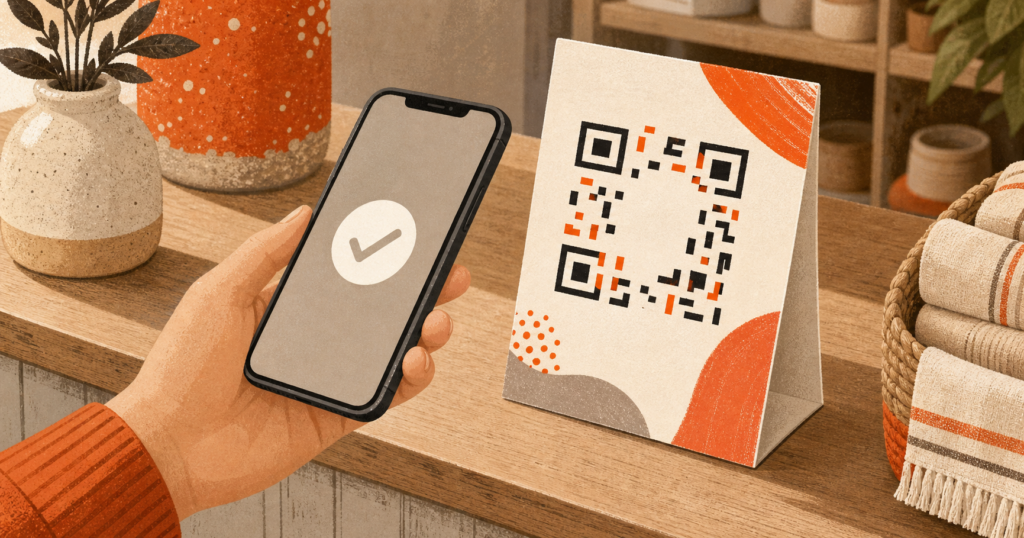
A QR code for Google reviews is allowed when it sends every customer to the same public review page. Keep the invitation neutral. Don’t sort people by their rating, offer a reward, or press them to post before they leave your premises. A private feedback option can sit beside the public invitation.
That small square can turn a few idle seconds at a counter or table into a finished review. You’ll need the right Google destination, durable print, wording that welcomes any honest opinion, and a way to count scans. This guide covers that path, plus when an NFC tap card makes sense. The goal is less friction, with no staff pressure or sentiment-based route, before you order a print run.
Is a QR code for Google reviews allowed?
Yes. Google lets merchants ask customers to post content based on a genuine visit. Its Maps user-generated-content policy draws four firm lines. Don’t ask only for positive reviews, discourage negative ones, press people during a visit, or offer any gift, discount, service, or payment for a review.
Put the same public invitation in front of every customer. Staff should not choose recipients based on a smile, compliment, or complaint. The customer chooses whether to scan, when to post, what rating to give, and what to write. A private feedback form may appear beside the public option for service issues.
Federal law has a narrower scope. The FTC’s Consumer Reviews and Testimonials Rule took effect on October 21, 2024. Section 465.4 bars rewards conditioned, expressly or by implication, on positive or negative sentiment. Section 465.7 covers threats, intimidation, knowingly false public accusations, and presenting a review set as complete after rating- or sentiment-based non-display. The rule does not name review gating as its own offense. Google’s policy supplies the direct rule for selective requests.
For more ways to collect reviews without steering the rating, see How to Get More Google Reviews for Your Local Business: 12 Policy-Safe Ways (2026).
How do you make a Google review QR code?
Google gives Business Profile owners a free review link and QR image. Its help page says the QR image must be made from a computer browser. Use this desktop workflow:
- Sign in to the Google account that manages your Business Profile.
- Open the correct profile and select Read Reviews.
- Select Get more reviews.
- Copy the public review link and save the QR image.
- Scan the saved code on an iPhone and an Android phone before you print it.
Check the business name and location on the page. Label each downloaded file at once so codes never get mixed across branches.
Use the official destination
The card should open your genuine public review page, with no star question, survey, or private form first. For the detailed destination steps, follow Get Your Google Review Link and Short URL the Right Way.
Static QR vs owned redirect
A static code pointing straight to Google is free and has no vendor account to renew.
An owned redirect gives you more control. A short address on your domain records an aggregate visit, then sends the customer to Google. You can change the destination without reprinting. Skip hosted QR plans that expire, cap scans, or lock printed codes behind a new subscription.
Print and test
Use dark modules on a light background and leave clear space around all four sides. Start near one inch square on a handheld card. Print signs larger. Treat that size as a test point.
Scan the physical proof in the shop’s usual light and from a normal distance. A glossy table tent can add glare that the screen proof never showed.
Should a Google review card use QR, NFC, or both?
Use both on one card when the format allows it. QR works through a phone camera on a broad range of devices. Near-field communication, or NFC, opens the same destination after a tap on a compatible phone.
QR code
A printed QR fits receipts, bag inserts, stickers, counter cards, and table tents. It works without asking the customer to find the phone’s NFC antenna. Keep a short destination under the code as a fallback.
Keep the card still, use strong contrast, and give the phone room to focus. Bent receipts and patterned backgrounds can break the scan. This makes a firm card a safer take-home piece.
NFC tap card
In this setup, an NFC tag stores one web address. It does not collect card-payment details from the customer’s phone.
NFC is fast at a counter, yet some phones lack it or have it turned off. Mark the tap spot so customers know where to touch. Program the same public destination as the QR. Lock the tag against later rewriting when the hardware permits it.
The combined card
Use one neutral line such as “Scan or tap to leave us a Google review.” Both actions should open the same public page. Test both after the tag is locked. Keep any private feedback option beside that invitation, with equal access for every customer. Do not put a rating selector or satisfaction question in front of Google.
Where should you place a Google review QR code?
Place the card near the natural end of the visit, where the customer has a free moment and can leave without being watched. BrightLocal’s 2025 survey found that 96% of consumers were open to writing a business review, yet 29% had written one in the prior year. A visible card closes part of that action gap.
Match the format to the setting:
- A restaurant can put a table tent near the check presenter or print the code on the receipt.
- A salon or clinic can place a counter card at reception for use after service.
- A retailer can use a checkout sign or a small card inside the shopping bag.
- A trade counter can attach the code to an invoice card or collection note.
Staff can offer a brief hand-off, then step back. The scripts in How to Ask Customers for Reviews keep the request short and polite. Give the same prompt to each customer. Don’t set review quotas for staff, hold up checkout, ask twice, or watch someone type.
Leave room for a phone to frame the code. Keep signs away from folds, spills, deep shadows, and hard glare. Replace worn cards. At a sensitive service, a take-home card may feel less exposing than a wall sign. The public invitation stays open to all customers.
What should you write on a Google review card?
Keep the message short and neutral. Use large, plain type. A customer should understand the task before opening the camera. Ask for an honest review, not a high rating, and give every customer the public path.
| Card wording or flow | Use it? | Reason |
|---|---|---|
| “Scan or tap to leave us a Google review.” | Yes | Names the action and invites any rating. |
| “Your honest feedback helps us improve.” | Yes | Welcomes genuine feedback without steering sentiment. |
| “Loved us? Leave 5 stars.” | No | Selects for praise and asks for a set rating. |
| “Scan for 10% off.” | No | Ties a reward to posting a review. |
| “Choose a star before we show your next step.” | No | Uses sentiment to change the customer’s path. |
A clean card needs four parts. Add your business name, the neutral prompt, the QR with an optional NFC mark, and a short fallback address. Skip claims such as “five-star customers only.” Don’t ask for named staff, set wording, or proof that the review was posted.
Keep service recovery separate. You may offer every customer a second line such as “Need help with your visit? Tell our manager here.” That option supports a quick fix. It must not change who receives the public review invitation or where the QR goes.
Google bans incentives for any posted review, including five-star reviews. A free drink, contest entry, loyalty point, or future discount tied to posting crosses that platform rule. The FTC’s 16 CFR Part 465 focuses Section 465.4 on rewards tied expressly or implicitly to sentiment. The cleanest card offers no review reward.
How do you track scans by location or campaign?
Give each location or placement its own owned address. Keep the names short. A downtown table tent might point to reviews.example.com/go/downtown-table, and a bag insert might use /go/downtown-bag. Each address records an aggregate visit before sending the customer to the correct public Google page.
You can place a campaign or source parameter on the owned redirect, then record it in your web analytics. Keep the data limited to scan counts, date, location, and placement. Don’t use the card to identify the reviewer or infer the rating they gave.
Measurement limits
Google does not send the QR owner a completed-review event. Ten scans and two new reviews in the same week do not prove that two scanners posted. Compare scan totals, request volume, and changes in public review count across steady time periods. Treat the pattern as correlation, not person-level attribution.
Use the same naming pattern across locations. That makes weak placements easy to spot. It can show that reception cards get more scans than bag inserts. It does not reveal which scanner wrote a review.
Which QR review-card mistakes kill scans or create risk?
Most failed cards have a physical, link, or request problem. Check each item before the print run:
- The code is too small, low contrast, damaged, or crowded by other artwork.
- A hosted QR expires, hits a scan cap, or stops after a subscription change.
- The code opens the wrong Business Profile or fails on mobile.
- The card carries so much copy that the action gets lost.
- The wording asks only pleased customers, requests five stars, or changes the path after a rating.
- Staff press customers, set quotas, or offer a reward for posting.
- Every branch uses one shared code, so scan counts stay mixed together.
Test one finished sample before ordering a batch. Ask someone who did not build it to scan without help. Check the business name, loading speed, and mobile form. Then retest each live code on a set schedule and after any Business Profile change. Replace damaged cards at once.
FAQ
Is a Google review QR code allowed?
Yes. It is allowed when every customer reaches the same public review page and can share any honest rating. Don’t choose recipients by sentiment, place a rating question before Google, offer a reward, or press customers to post during their visit. Review the policy rules above.
Can I make a Google review QR code for free?
Yes. Open your Google Business Profile in a desktop browser, select Read Reviews, then Get more reviews. Save the official QR image and test the printed proof on more than one phone. Google’s current tool does not make the QR image on mobile. See the setup steps above.
What should I write on a Google review card?
Use a short, neutral invitation such as “Scan or tap to leave us a Google review.” Ask for an honest opinion and invite every customer. Avoid wording tied to happiness, five stars, set review text, or a reward. Compare the card wording above.
Is an NFC tap card better than QR?
NFC is fast on a compatible phone. QR reaches more devices and works well on receipts, stickers, signs, and table tents. A card with both gives each customer a choice. Program both methods to open the same public review page. Compare QR and NFC above.
How do I track locations?
Create one owned redirect for each location or placement, then encode that address in its QR. Count visits to each route and compare them with review trends. Google does not report which scanner posted, so scan totals show interest rather than exact review attribution. Read the tracking limits above.
Set up a QR code for Google reviews that invites everyone
A good review card has a short public path, a tested QR, optional NFC, neutral wording, and one owned tracking address per placement. Offer it to every customer without staff selection, rewards, or pressure. A private feedback option can sit beside the public invitation for service recovery.
Reviews Wall can support a branded WordPress review flow when every customer receives that same public invitation. Keep any private feedback choice additional, and make the card easy to scan before you print the full run.
Sources
- Google Business Profile Help — Create a Google link or QR code to request reviews
- Google Maps User-Generated-Content Policy — Prohibited & restricted content
- Federal Trade Commission — 16 CFR Part 465, Trade Regulation Rule on the Use of Consumer Reviews and Testimonials
- BrightLocal — Local Consumer Review Survey 2025
- Ngozi Onyekwelu — Google Review QR Code: Strategies and Tips
Share with AI
Pipe this article straight into ChatGPT.